🔗
Associazione LightBand
LightBand Pairing
Emparejamiento LightBand
Appairage LightBand
Come associare il LightBand all'app
How to pair the LightBand with the app
Como emparejar el LightBand con la app
Comment appairer le LightBand avec l'application
Cos'e
Il LightBand di Uptivo puo essere associato direttamente tramite l'app per visualizzare la frequenza cardiaca in tempo reale durante l'allenamento.
Una volta associato, il sensore puo anche essere registrato al club, rendendolo rilevabile dal bridge e utilizzabile per la visualizzazione dei dati su schermo.
Come funziona
L'associazione del LightBand avviene direttamente dalla sezione Training dell'app. Per avviare la procedura, devi prima aprire la schermata Training e poi toccare una delle icone di associazione disponibili:
- L'icona del cuore con il segno piu al centro dello schermo
- L'icona del cuore con l'ingranaggio nell'angolo in alto a destra
Se il LightBand e acceso correttamente, l'app rileva il sensore e ne mostra l'ID.
Come accendere il LightBand
Prima dell'associazione, il sensore deve essere acceso correttamente:
- Tieni il LightBand rivolto verso di te, con il logo Uptivo "U" nell'orientamento corretto
- Sulla parte anteriore del dispositivo vedrai: il logo centrale e due aree arancioni, una a sinistra e una a destra
- Premi il pulsante arancione sul lato destro
Una volta attivato, il LightBand inizia a lampeggiare blu rapidamente. Questo indica che il sensore e attivo e pronto per essere rilevato dall'app. Quando la connessione viene stabilita, il lampeggio si stabilizza.
Come associare il sensore
- Apri l'app
- Vai alla sezione Training
- Accendi il LightBand
- Tocca l'icona del cuore con il segno piu al centro, oppure l'icona del cuore con l'ingranaggio in alto a destra
- L'app cerca il sensore attivo
- Quando il sensore appare con il suo ID, tocca il pulsante arancione Associa
Il LightBand sara quindi connesso all'app.
Come sapere se il sensore e connesso
Una volta completata l'associazione:
- La tua frequenza cardiaca in tempo reale apparira nella schermata Training
- La connessione del sensore e attiva
Questo conferma che il LightBand e correttamente associato e sta trasmettendo.
Dettagli del sensore nell'app
Puoi accedere alle informazioni dettagliate del sensore toccando l'icona del cuore con l'ingranaggio nell'angolo in alto a destra. Qui puoi visualizzare:
- Frequenza cardiaca in tempo reale
- Stato della connessione
- ID del sensore
- Livello della batteria
- Allenamenti registrati nella memoria del sensore
La sezione allenamenti registrati ti permette di scaricare e importare sessioni memorizzate direttamente sul LightBand.
Come registrare il sensore al club
Dopo aver associato il sensore all'app, puoi anche registrarlo al club.
⚠️
Per la visualizzazione su schermo tramite bridge ANT+, registra il sensore al club PRIMA di accenderlo. Se hai gia acceso il sensore prima della registrazione, spegnilo per almeno 1 minuto dopo aver completato la registrazione, poi riaccendilo. Questo e necessario perche il bridge scarta i segnali di sensori non riconosciuti e li rivaluta solo dopo non averli visti per almeno 1 minuto.
Metodo 1: Registra al Club dalle impostazioni del sensore
- Apri l'area impostazioni
- Individua l'icona con il simbolo del collegamento etichettata Registra al Club
- Tocca l'icona
Una volta completato, il sensore e associato al club e diventa rilevabile dal bridge.
Metodo 2: Aggiungi il sensore dal profilo utente
- Apri il Profilo Utente
- Scorri fino a Sensori HR Club
- Tocca per aprire la sezione
- Tocca l'icona del cuore con il segno piu
- Inserisci manualmente l'ID del sensore
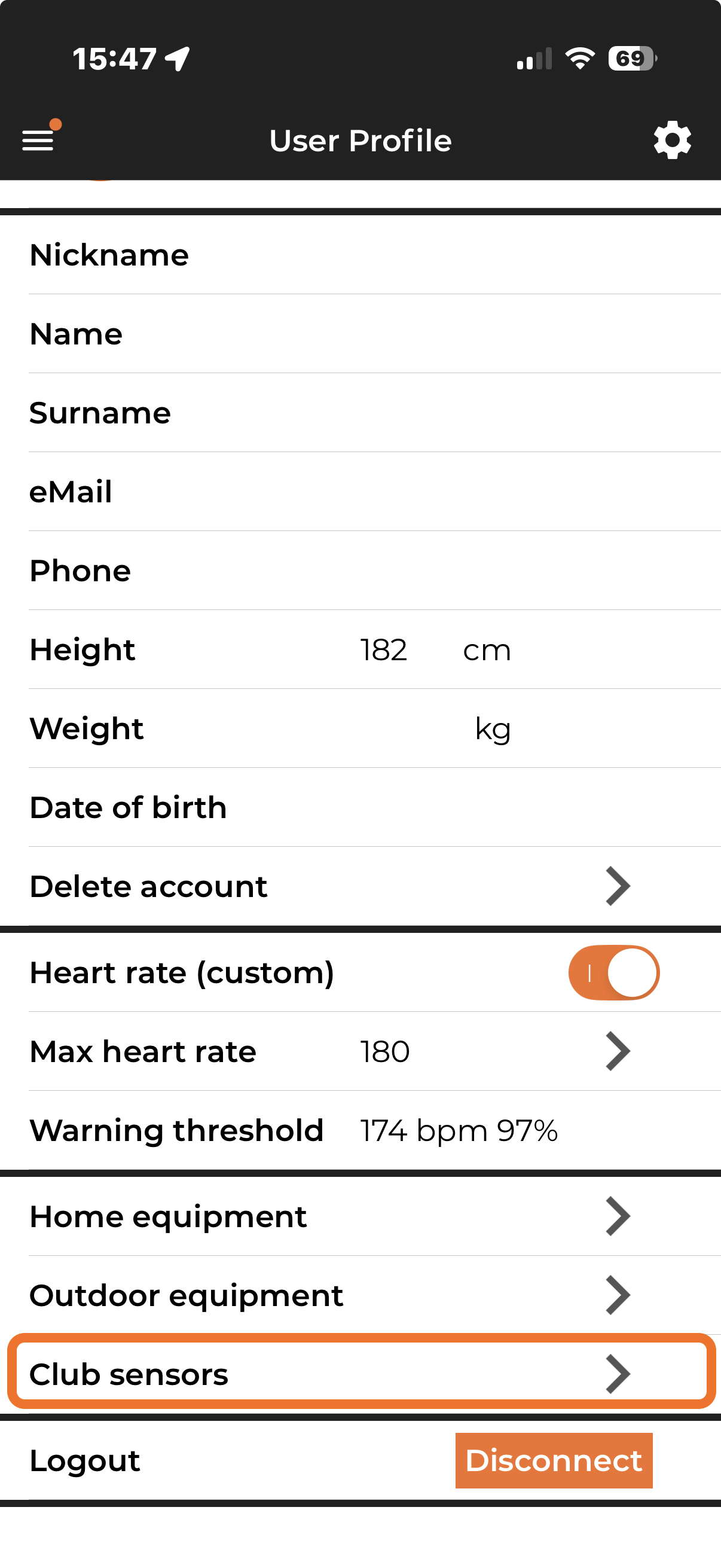
Tocca 'Club sensors' nel tuo Profilo Utente
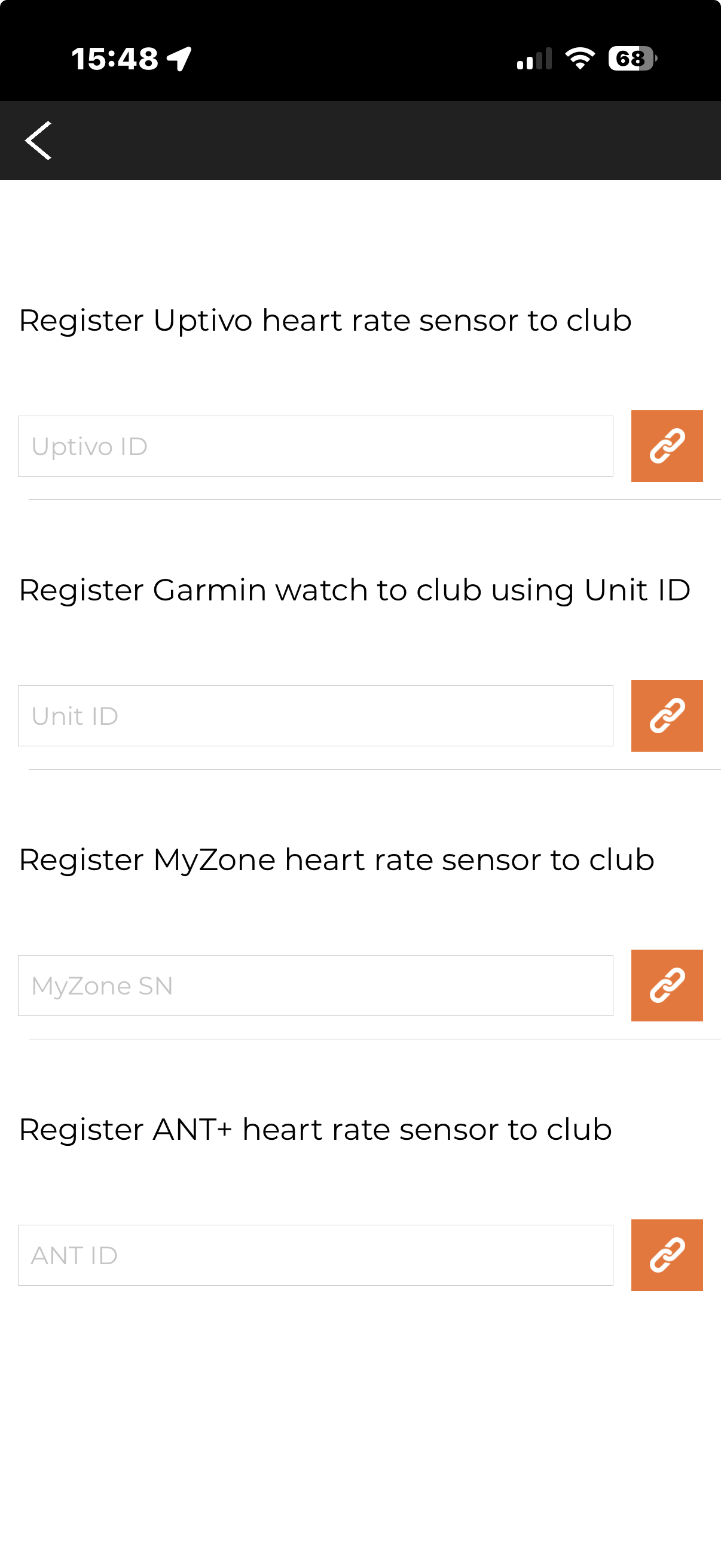
Profilo Utente > Sensori club - Inserisci il tuo Uptivo ID
Questo permette di aggiungere un sensore direttamente al sistema del club. Puo essere usato non solo per il LightBand, ma anche per altri sensori compatibili come Garmin, Myzone o un generico ID sensore ANT+.
ℹ️
L'associazione connette il sensore alla tua app. La registrazione al club permette: il rilevamento da parte del bridge, la trasmissione dei dati sullo schermo e la partecipazione alle sessioni di allenamento in tempo reale su schermo.
Domande frequenti
Dove associo il LightBand?
- Nella sezione Training dell'app
Come accendo il LightBand?
- Premi il pulsante arancione sul lato destro. Il sensore iniziera a lampeggiare blu.
Cosa significa la luce blu lampeggiante?
- Il sensore e attivo e pronto per essere rilevato dall'app.
Come faccio a sapere se il sensore e connesso?
- Il lampeggio si stabilizza
- La frequenza cardiaca appare nella schermata Training
Devo inserire manualmente l'ID del sensore?
- No, non per l'associazione standard dall'app nella sezione Training
- Si, se vuoi aggiungere manualmente il sensore dai Sensori HR Club
Posso aggiungere il sensore direttamente dal mio profilo?
- Si, da Profilo Utente > Sensori HR Club. Puoi aggiungere il sensore inserendo il suo ID manualmente.
Perche il mio sensore non appare sullo schermo del club?
- Potrebbe non essere registrato al club
- Usa Registra al Club o aggiungilo tramite Sensori HR Club
What it is
The Uptivo LightBand can be paired directly through the app in order to display your real-time heart rate during training.
Once paired, the sensor can also be registered to the club, making it detectable by the bridge and usable for on-screen data visualization.
How it works
LightBand pairing takes place directly from the Training section of the app. To start the pairing procedure, you must first open the Training screen and then tap one of the available pairing icons:
- The heart icon with a plus sign in the center of the screen
- The heart icon with the gear in the top right corner
If the LightBand is turned on correctly, the app will detect the sensor and display its ID.
How to turn on the LightBand
Before pairing, the sensor must be turned on correctly:
- Hold the LightBand facing you, with the Uptivo "U" logo in the correct orientation
- On the front of the device, you will see: the central logo and two orange areas, one on the left and one on the right
- Press the orange button on the right side
Once activated, the LightBand starts blinking blue rapidly. This indicates that the sensor is active and ready to be detected by the app. When the connection is established, the blinking stabilizes.
How to pair the sensor
- Open the app
- Go to the Training section
- Turn on the LightBand
- Tap the heart icon with a plus sign in the center, or the heart icon with the gear in the top right corner
- The app will search for the active sensor
- Once the sensor appears with its ID, tap the orange Pair button
The LightBand will then be connected to the app.
How to know if the sensor is connected
Once the pairing is completed:
- Your real-time heart rate will appear in the Training screen
- The sensor connection is active
This confirms that the LightBand is correctly paired and transmitting.
Sensor details in the app
You can access detailed sensor information by tapping the heart icon with the gear in the top right corner. Here you can view:
- Real-time heart rate
- Connection status
- Sensor ID
- Battery level
- Recorded workouts stored in the sensor memory
The recorded workouts section allows you to download and import sessions stored directly on the LightBand.
How to register the sensor to the club
After pairing the sensor with the app, you can also register it to the club.
⚠️
For on-screen display via ANT+ bridge, register the sensor to the club BEFORE turning it on. If you already turned on the sensor before registration, turn it off for at least 1 minute after completing registration, then turn it back on. This is necessary because the bridge discards signals from unrecognized sensors and only re-evaluates them after not seeing them for at least 1 minute.
Method 1: Register to Club from the sensor settings
- Open the settings area
- Locate the icon with the link symbol labeled Register to Club
- Tap the icon
Once completed, the sensor is associated with the club and becomes detectable by the bridge.
Method 2: Add the sensor from the user profile
- Open the User Profile
- Scroll down to Club Heart Rate Sensors
- Tap to open the section
- Tap the heart icon with the plus sign
- Manually enter the sensor ID
Tap 'Club sensors' in your User Profile
User Profile > Club sensors - Enter your Uptivo ID
This allows the user to add a sensor directly to the club system. This can be used not only for an Uptivo LightBand, but also for other compatible sensors such as Garmin, Myzone, or a generic ANT+ sensor ID.
ℹ️
Pairing connects the sensor to your app. Registering it to the club allows: detection by the bridge, transmission of data to the screen, and participation in live on-screen training sessions.
Common questions
Where do I pair the LightBand?
- In the Training section of the app
How do I turn on the LightBand?
- Press the orange button on the right side. The sensor will start blinking blue.
What does the blue blinking light mean?
- The sensor is active and ready to be detected by the app.
How do I know if the sensor is connected?
- The blinking stabilizes
- Your heart rate appears in the Training screen
Do I need to enter the sensor ID manually?
- No, not for standard app pairing from the Training section
- Yes, if you want to manually add the sensor from Club Heart Rate Sensors
Can I add the sensor directly from my profile?
- Yes, from User Profile > Club Heart Rate Sensors. You can add the sensor by entering its ID manually.
Why is my sensor not showing on the club screen?
- It may not be registered to the club
- Use Register to Club or add it through Club Heart Rate Sensors
Que es
El LightBand de Uptivo se puede emparejar directamente a traves de la app para mostrar tu frecuencia cardiaca en tiempo real durante el entrenamiento.
Una vez emparejado, el sensor tambien puede registrarse en el club, haciendolo detectable por el bridge y utilizable para la visualizacion de datos en pantalla.
Como funciona
El emparejamiento del LightBand se realiza directamente desde la seccion Training de la app. Para iniciar el procedimiento, primero debes abrir la pantalla Training y luego tocar uno de los iconos de emparejamiento disponibles:
- El icono del corazon con el signo mas en el centro de la pantalla
- El icono del corazon con el engranaje en la esquina superior derecha
Si el LightBand esta encendido correctamente, la app detectara el sensor y mostrara su ID.
Como encender el LightBand
Antes del emparejamiento, el sensor debe encenderse correctamente:
- Sostiene el LightBand frente a ti, con el logo Uptivo "U" en la orientacion correcta
- En la parte frontal del dispositivo veras: el logo central y dos areas naranjas, una a la izquierda y otra a la derecha
- Presiona el boton naranja del lado derecho
Una vez activado, el LightBand comienza a parpadear azul rapidamente. Esto indica que el sensor esta activo y listo para ser detectado por la app. Cuando se establece la conexion, el parpadeo se estabiliza.
Como emparejar el sensor
- Abre la app
- Ve a la seccion Training
- Enciende el LightBand
- Toca el icono del corazon con el signo mas en el centro, o el icono del corazon con el engranaje en la esquina superior derecha
- La app buscara el sensor activo
- Cuando el sensor aparezca con su ID, toca el boton naranja Emparejar
El LightBand quedara entonces conectado a la app.
Como saber si el sensor esta conectado
Una vez completado el emparejamiento:
- Tu frecuencia cardiaca en tiempo real aparecera en la pantalla Training
- La conexion del sensor esta activa
Esto confirma que el LightBand esta correctamente emparejado y transmitiendo.
Detalles del sensor en la app
Puedes acceder a la informacion detallada del sensor tocando el icono del corazon con el engranaje en la esquina superior derecha. Aqui puedes ver:
- Frecuencia cardiaca en tiempo real
- Estado de la conexion
- ID del sensor
- Nivel de bateria
- Entrenamientos registrados en la memoria del sensor
La seccion de entrenamientos registrados te permite descargar e importar sesiones almacenadas directamente en el LightBand.
Como registrar el sensor en el club
Despues de emparejar el sensor con la app, tambien puedes registrarlo en el club.
⚠️
Para la visualizacion en pantalla a traves del bridge ANT+, registra el sensor en el club ANTES de encenderlo. Si ya encendiste el sensor antes de la registracion, apagalo durante al menos 1 minuto despues de completar la registracion y luego vuelvelo a encender. Esto es necesario porque el bridge descarta las senales de sensores no reconocidos y solo los reevalua despues de no verlos durante al menos 1 minuto.
Metodo 1: Registrar en el Club desde la configuracion del sensor
- Abre el area de configuracion
- Localiza el icono con el simbolo de enlace etiquetado Registrar en el Club
- Toca el icono
Una vez completado, el sensor esta asociado al club y se vuelve detectable por el bridge.
Metodo 2: Agregar el sensor desde el perfil de usuario
- Abre el Perfil de Usuario
- Desplazate hasta Sensores HR del Club
- Toca para abrir la seccion
- Toca el icono del corazon con el signo mas
- Ingresa manualmente el ID del sensor
Toca 'Club sensors' en tu Perfil de Usuario
Perfil de Usuario > Sensores del club - Ingresa tu Uptivo ID
Esto permite agregar un sensor directamente al sistema del club. Se puede usar no solo para el LightBand, sino tambien para otros sensores compatibles como Garmin, Myzone o un ID generico de sensor ANT+.
ℹ️
El emparejamiento conecta el sensor a tu app. Registrarlo en el club permite: la deteccion por el bridge, la transmision de datos a la pantalla y la participacion en sesiones de entrenamiento en vivo en pantalla.
Preguntas frecuentes
Donde emparejo el LightBand?
- En la seccion Training de la app
Como enciendo el LightBand?
- Presiona el boton naranja del lado derecho. El sensor comenzara a parpadear azul.
Que significa la luz azul parpadeante?
- El sensor esta activo y listo para ser detectado por la app.
Como se si el sensor esta conectado?
- El parpadeo se estabiliza
- Tu frecuencia cardiaca aparece en la pantalla Training
Necesito ingresar manualmente el ID del sensor?
- No, no para el emparejamiento estandar desde la app en la seccion Training
- Si, si quieres agregar manualmente el sensor desde Sensores HR del Club
Puedo agregar el sensor directamente desde mi perfil?
- Si, desde Perfil de Usuario > Sensores HR del Club. Puedes agregar el sensor ingresando su ID manualmente.
Por que mi sensor no aparece en la pantalla del club?
- Puede que no este registrado en el club
- Usa Registrar en el Club o agregalo a traves de Sensores HR del Club
Qu'est-ce que c'est
Le LightBand d'Uptivo peut etre appaire directement via l'application pour afficher votre frequence cardiaque en temps reel pendant l'entrainement.
Une fois appaire, le capteur peut egalement etre enregistre aupres du club, le rendant detectable par le bridge et utilisable pour la visualisation des donnees a l'ecran.
Comment ca fonctionne
L'appairage du LightBand se fait directement depuis la section Training de l'application. Pour lancer la procedure, vous devez d'abord ouvrir l'ecran Training puis appuyer sur l'une des icones d'appairage disponibles :
- L'icone du coeur avec le signe plus au centre de l'ecran
- L'icone du coeur avec l'engrenage dans le coin superieur droit
Si le LightBand est allume correctement, l'application detectera le capteur et affichera son ID.
Comment allumer le LightBand
Avant l'appairage, le capteur doit etre allume correctement :
- Tenez le LightBand face a vous, avec le logo Uptivo "U" dans la bonne orientation
- Sur la face avant de l'appareil, vous verrez : le logo central et deux zones orange, une a gauche et une a droite
- Appuyez sur le bouton orange du cote droit
Une fois active, le LightBand commence a clignoter bleu rapidement. Cela indique que le capteur est actif et pret a etre detecte par l'application. Lorsque la connexion est etablie, le clignotement se stabilise.
Comment appairer le capteur
- Ouvrez l'application
- Allez dans la section Training
- Allumez le LightBand
- Appuyez sur l'icone du coeur avec le signe plus au centre, ou l'icone du coeur avec l'engrenage en haut a droite
- L'application recherchera le capteur actif
- Lorsque le capteur apparait avec son ID, appuyez sur le bouton orange Appairer
Le LightBand sera alors connecte a l'application.
Comment savoir si le capteur est connecte
Une fois l'appairage termine :
- Votre frequence cardiaque en temps reel apparaitra dans l'ecran Training
- La connexion du capteur est active
Cela confirme que le LightBand est correctement appaire et transmet.
Details du capteur dans l'application
Vous pouvez acceder aux informations detaillees du capteur en appuyant sur l'icone du coeur avec l'engrenage dans le coin superieur droit. Vous pouvez y voir :
- Frequence cardiaque en temps reel
- Statut de la connexion
- ID du capteur
- Niveau de batterie
- Entrainements enregistres dans la memoire du capteur
La section entrainements enregistres vous permet de telecharger et d'importer des seances stockees directement sur le LightBand.
Comment enregistrer le capteur aupres du club
Apres avoir appaire le capteur avec l'application, vous pouvez egalement l'enregistrer aupres du club.
⚠️
Pour l'affichage a l'ecran via le bridge ANT+, enregistrez le capteur au club AVANT de l'allumer. Si vous avez deja allume le capteur avant l'enregistrement, eteignez-le pendant au moins 1 minute apres avoir termine l'enregistrement, puis rallumez-le. Cela est necessaire car le bridge rejette les signaux des capteurs non reconnus et ne les reevalue qu'apres ne pas les avoir vus pendant au moins 1 minute.
Methode 1 : Enregistrer au Club depuis les parametres du capteur
- Ouvrez la zone de parametres
- Localisez l'icone avec le symbole de lien intitulee Enregistrer au Club
- Appuyez sur l'icone
Une fois termine, le capteur est associe au club et devient detectable par le bridge.
Methode 2 : Ajouter le capteur depuis le profil utilisateur
- Ouvrez le Profil Utilisateur
- Faites defiler jusqu'a Capteurs FC Club
- Appuyez pour ouvrir la section
- Appuyez sur l'icone du coeur avec le signe plus
- Entrez manuellement l'ID du capteur
Appuyez sur 'Club sensors' dans votre Profil Utilisateur
Profil Utilisateur > Capteurs club - Entrez votre Uptivo ID
Cela permet d'ajouter un capteur directement au systeme du club. Cela peut etre utilise non seulement pour le LightBand, mais aussi pour d'autres capteurs compatibles comme Garmin, Myzone ou un ID de capteur ANT+ generique.
ℹ️
L'appairage connecte le capteur a votre application. L'enregistrement aupres du club permet : la detection par le bridge, la transmission des donnees a l'ecran et la participation aux sessions d'entrainement en direct a l'ecran.
Questions frequentes
Ou est-ce que j'appaire le LightBand ?
- Dans la section Training de l'application
Comment allumer le LightBand ?
- Appuyez sur le bouton orange du cote droit. Le capteur commencera a clignoter bleu.
Que signifie la lumiere bleue clignotante ?
- Le capteur est actif et pret a etre detecte par l'application.
Comment savoir si le capteur est connecte ?
- Le clignotement se stabilise
- Votre frequence cardiaque apparait dans l'ecran Training
Dois-je entrer manuellement l'ID du capteur ?
- Non, pas pour l'appairage standard depuis l'application dans la section Training
- Oui, si vous souhaitez ajouter manuellement le capteur depuis Capteurs FC Club
Puis-je ajouter le capteur directement depuis mon profil ?
- Oui, depuis Profil Utilisateur > Capteurs FC Club. Vous pouvez ajouter le capteur en entrant son ID manuellement.
Pourquoi mon capteur n'apparait-il pas sur l'ecran du club ?
- Il n'est peut-etre pas enregistre aupres du club
- Utilisez Enregistrer au Club ou ajoutez-le via Capteurs FC Club